
Downloading Content
Please Be Aware
The University of Arizona transitioned to Brightspace's New Content Experience on August 17, 2026. All Brightspace sites will use New Content Experience.
On This Page:
Downloading Files from a Module or Submodule
Step 1
From Content, locate the module or submodule that contains the desired file.
Step 2A (Option 1)
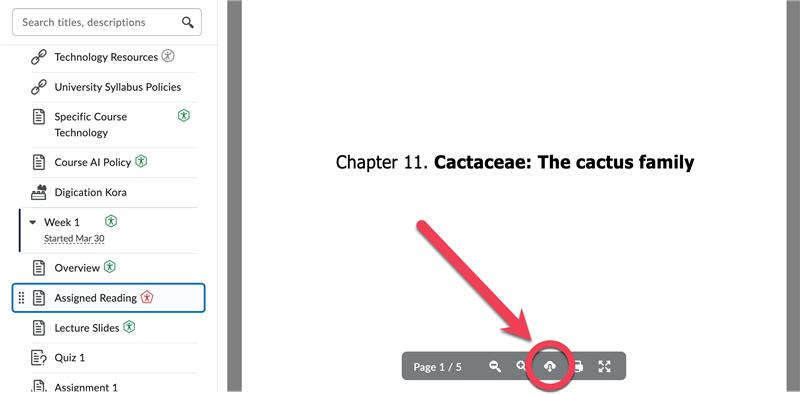
To download a PDF of the file, hover your cursor over the inline file in the right panel until the Control Panel appears at the bottom of the page and select the Download icon (i.e., cloud with a down facing arrow); on the next screen, choose the Download icon again in the Control Panel.
Step 2B (Option 2)
If you desire to download a file in the same file format as uploaded to Brightspace, select the Three-Dot button in the upper right and choose Download. The file automatically downloads to your device's designed download folder.
Note
PowerPoint files (.ppt & .pptx) are displayed in a module or submodule as an inline PDF. This is expected behavior and is what allows students to review the slide deck without download. Users can download a PowerPoint file via Option 2 above.