
Connect FeedbackFruits to the Brightspace Gradebook
Please Be Aware
Throughout this help page you will notice these green callouts for New Content Experience Instructions. This is a new user interface for the Content section within a Brightspace course. Between now and August 2026 there may be courses that have the current "Classic" content interface or some that are trying out the New Content Experience (NCE). Instructions may be different depending on what user interface your course is using. If your course is not using NCE you can ignore these callouts.
To learn more about NCE, visit the New Content Experience Introduction page. In August 2026, ALL Brightspace courses will be forced into the New Content Experience interface.
Because the New Content Experience uses a different process for connecting FeedbackFruits to a Brightspace grade item, separate instructions are provided below Step 4. Select this link to jump to that section.
Introduction
FeedbackFruits cannot create Grade Items in Gradebook within the University of Arizona Brightspace instance. Grade items must be manually created and connected to the FeedbackFruits activity. Unpublished grades in FeedbackFruits are invisible to students until the instructor manually publishes the grades, or schedules a date and time for automatic publishing to occur.
Step 1
By default, when a FeedbackFruits activity link has been selected within a course content module, it will automatically open in a separate browser tab to ensure full screen view.
When the new tab opens in your browser, navigate back to the Brightspace page that you came from and you will find the Assessment section at the bottom of the External Resource screen.

Step 2
Proceed to create a grade item. There are multiple ways to create Grade Items in Brightspace. For more information on creating Grade Items, please visit the Create Grade Categories and Grade Items in Brightspace help page.
Once the grade item has been created, select the Add a grade item... button.
Step 3
Then select the Grade Item from the drop-down menu, and select Save.

Step 4
Once the Grade Item is saved, you must relaunch the FeedbackFruits activity, either by selecting the Open in a New Window button on the External Resource page, or select the activity link again from Course Content.
New Content Experience Instructions
Once you have inserted a a FeedbackFruits activity into Brightspace following the steps outlined in this article, you can connect the activity to the Gradebook by following the subsequent steps.
Step 1
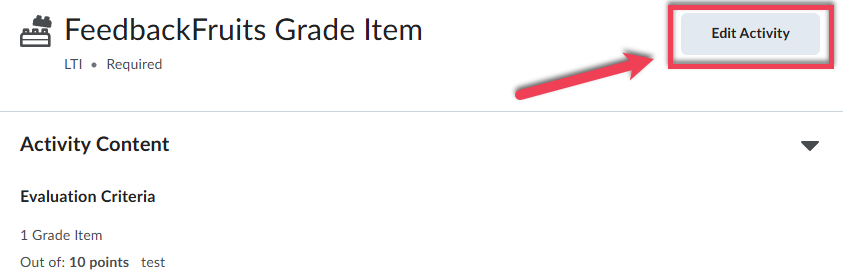
Select the FeedbackFruits activity from the module and select Edit Activity.
Step 2
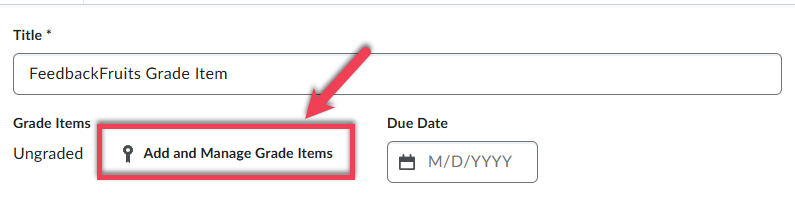
Inside the Activity Editor, select Add and Manage Grad Items.
Step 3
From the Add and Manage Grade Items screen, select + Grade Item.
Step 4
Set the appropriate point value in the points field.
Step 5
Select OK.
Step 6
Select Save and Close.
A Grade Item will be placed in the Gradebook using the same name as the title of the FeedbackFruits activity. The Grade Item name, point value, category, and other details can be adjusted from inside the Grades tool using the steps outlined in this help article.
Step 5
Within the FeedbackFruits activity, navigate down to the Grading module and select the Publish Grades button to check if the grade item has successfully been configured to your course.
If you have correctly configured the Grade Item you should see the screen below indicating a successful sync with the Brightspace Gradebook. It will display a message that reads, "Success. Are you sure you want to publish the grades? This can not be reverted" and you'll have options to cancel or publish.
Success

If the Grade Item is not configured, or you fail to relaunch the activity, you will see the screen below on an unsuccessful Gradebook sync. It will display a message that reads, "Unsuccessful. Are you sure you want to publish the grades to Brightspace? FeedbackFruits can't find a location in Brightspace to publish the grades to, but the grades will still be visible within this activity. If you also want the grades to be published to Brightspace, please check your Brightspace settings." It will have a link to more information about publishing grades and have a cancel and publish button.
Unsuccessful
