
Discussion on Topic
On this Page
Overview
Discussion on Topic creates a discussion space in which the conversation is centered around a written discussion prompt in response to a topic defined by the instructor. Posts can include attached documents, audio/video, images, links to websites, and screen sharing. Students are paired with their peers or select their peers in a freeform discussion of each other's posts. Posts can be made individually by each student or per group. Discussions can happen individually, within groups, outside of groups, or individually where each member of a group gets assigned to discuss the same group's post.
A complete Discussion on Topic activity will consist of the following default modules/steps, along with a list of configurable options at each step:
- Instructions - Written instructions for students to follow. You can optionally attach video, audio, screen share, and files.
- Discussion Post - Where the topic is set by the instructor, and the initial post is made by the student.
- Peer discussion - Students discuss work from their peers. Can be Assigned or Free Form Discussion
- Grading (optional) - Configure which facets of the activity should be weighed in the students grade and synced with the Brightspace Gradebook.
You can also optionally add the following steps:
- Reflections (optional) - Students write a reflection on the outcomes of the activity and their learning. Supports automatic word counts, guidelines, and separate scheduling deadlines.
- Select Most Valuable Contributions - Let students select certain peers’ contributions that they found most valuable to increase autonomy and avoid free-riding.
Note
There are two discussion tools in FeedbackFruits: Discussion on Work and Discussion on Topic. This article describes Discussion on Topic. For more information on the different discussion types, visit the following help pages:
Setup Process
Step 1
Instructions
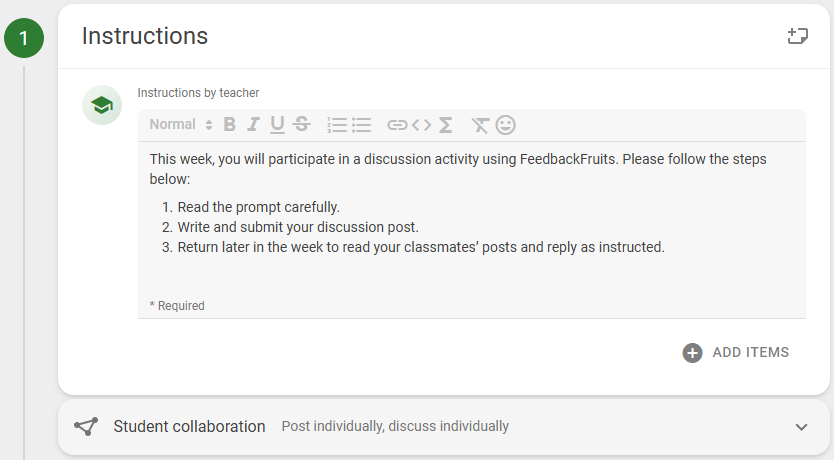
Here, you can write the instructions you want to provide to your students. If you'd like to include an audio, video, screen recording, or attach a file, select the add items icon to do so.
Collaboration Options
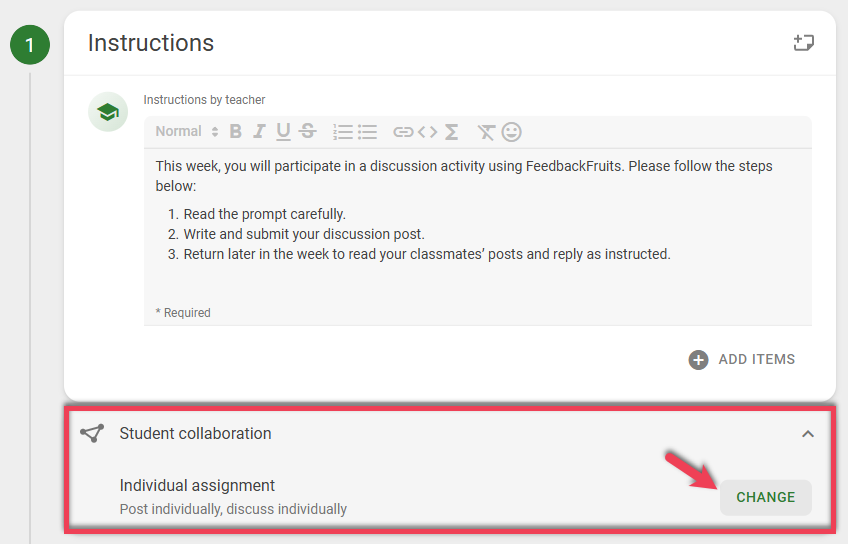
You can access the collaboration options in the initial creation of a Discussion on Topic, or in the editor mode of a live activity. Collaboration options are always a sub-setting of the Instructions step. To access the collaboration options menu, select the Student Collaboration dropdown, then select Change.
This will open the Collaboration options screen shown below.
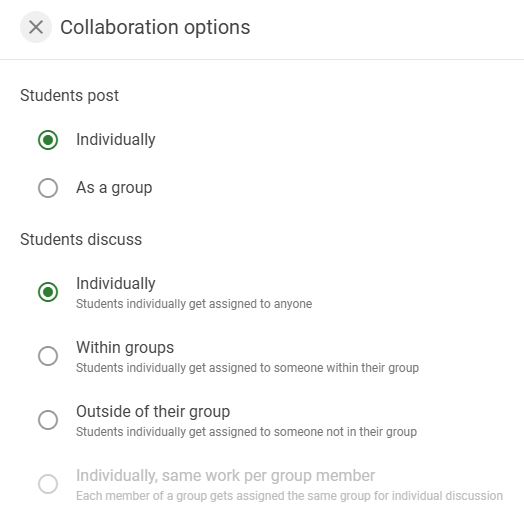
This will allow for the following combinations:
-
Post discussions individually, discuss individually
Use this option if you want students to individually post their discussion and then be assigned to engage with the posts of one or more random peers who have also shared their discussions.
-
Post discussions individually, discuss within group.
Use this option if you want students to individually post their discussions and then participate in smaller group discussions to engage with their group member's posts.
-
Post discussions individually, discuss outside of their groups
Use this option if you want students to individually post their discussions and then be assigned to engage with posts from peers outside their group.
-
Post discussions as a group, discuss individually
Use this option if you want students to collaborate on a single group discussion post but participate individually in discussions with posts from other groups.
-
Post as a group, discuss individually the same post from another group
Use this option if you want the group to submit their work collectively, while each member individually reviews and discusses the same submission made by another group.
Step 2 - Discussion Post
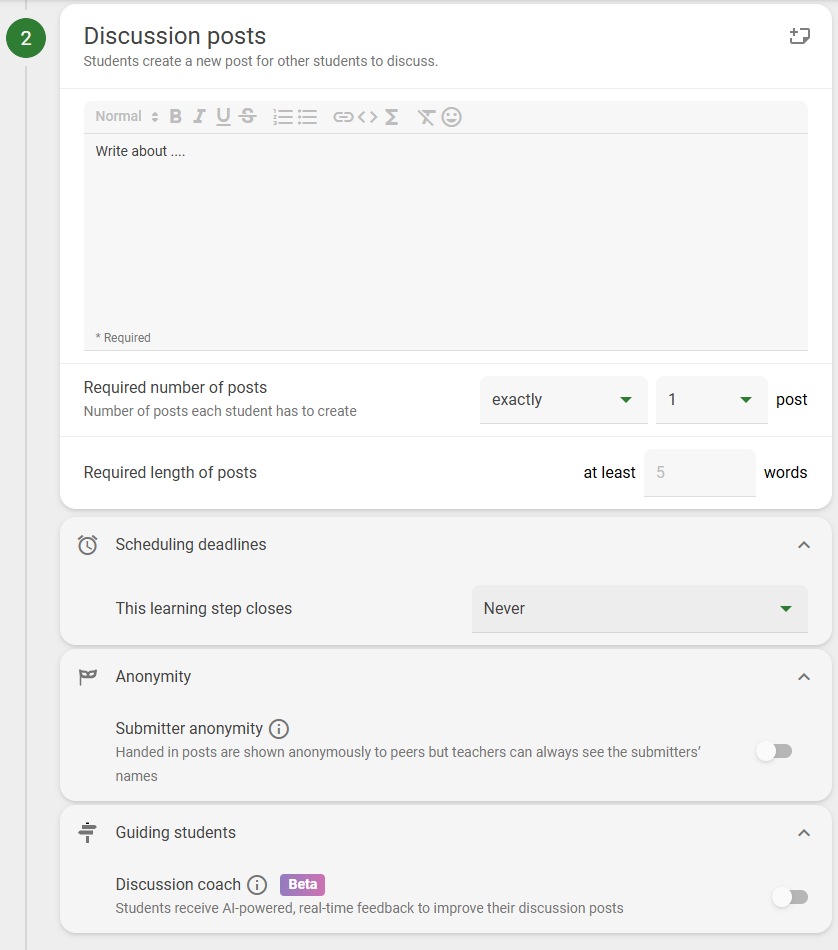
In the Discussion Post section, configure the parameters for the student's original post. Configuration options include:
- The discussion prompt.
- Required number of posts
- Required length of posts (a word count for the initial post).
- Scheduling Deadlines (deadlines automatically sync to the Brightspace Calendar tool).
- Anonymity of initial post.
- Guiding Students.
- Optionally enable the AI Discussion Coach.
Note:
For more information on Scheduling Deadlines and Granting Extensions, please visit the Scheduling Deadlines and Granting Extensions help page.
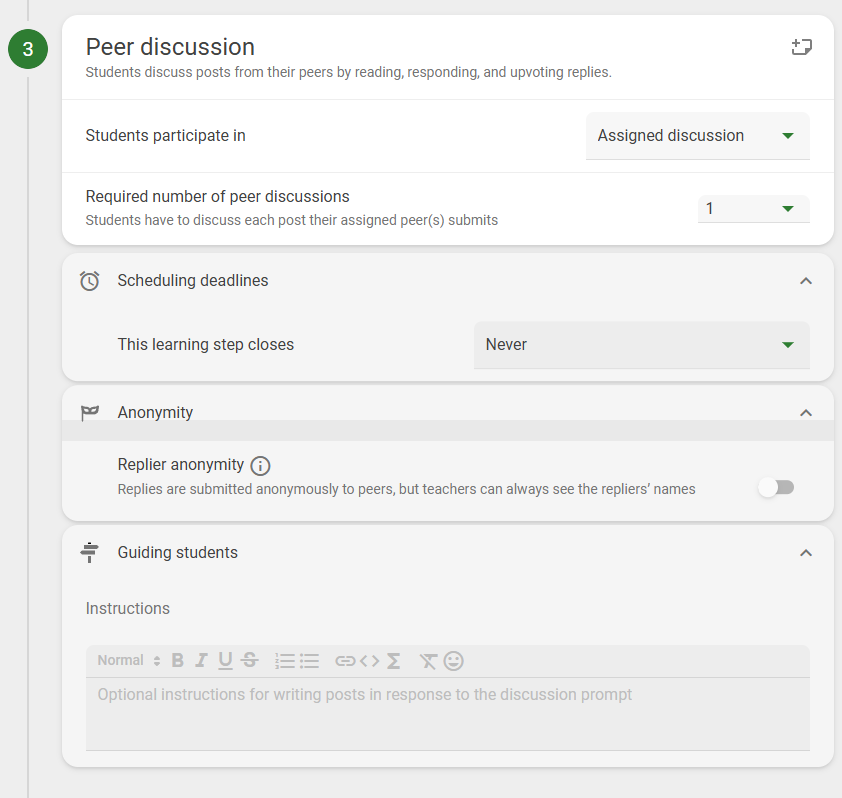
Step 3 - Peer Discussion
Configure the options for the Peer Discussions. Configuration options include:
- Assigned or Free Form Discussion drop-down.
- Required number of peer's posts to discuss.
- Scheduling Deadlines (deadlines automatically sync to the Brightspace Calendar tool).
- Replier anonymity.
- Guiding Students.
- Intended for providing further instruction on the Peer Discussion step specifically.
Step 4 - Grading
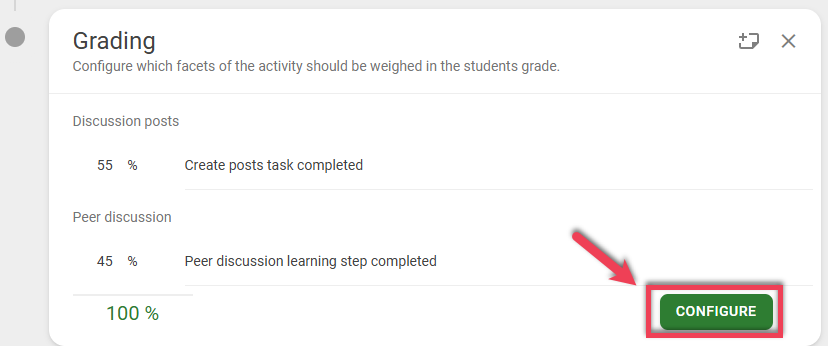
In the Grading step, configure the various facets of the Discussion on Topic steps to be graded and synced to the Brightspace Gradebook, as well as set publishing options and schedule automatic publishing dates/times.

To configure which facets and their respective percentages that are to be graded, select the CONFIGURE button in the bottom right.
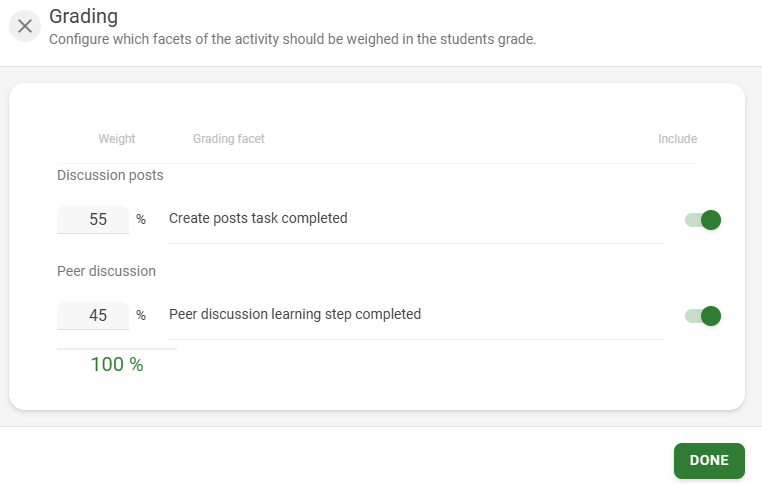
In the Grading configuration screen, you can enable and disable the different facets of the assignment, or change the percentages associated with each step. Configure the options, then select the DONE button when you're satisfied with the settings.
Viewing Student Discussions
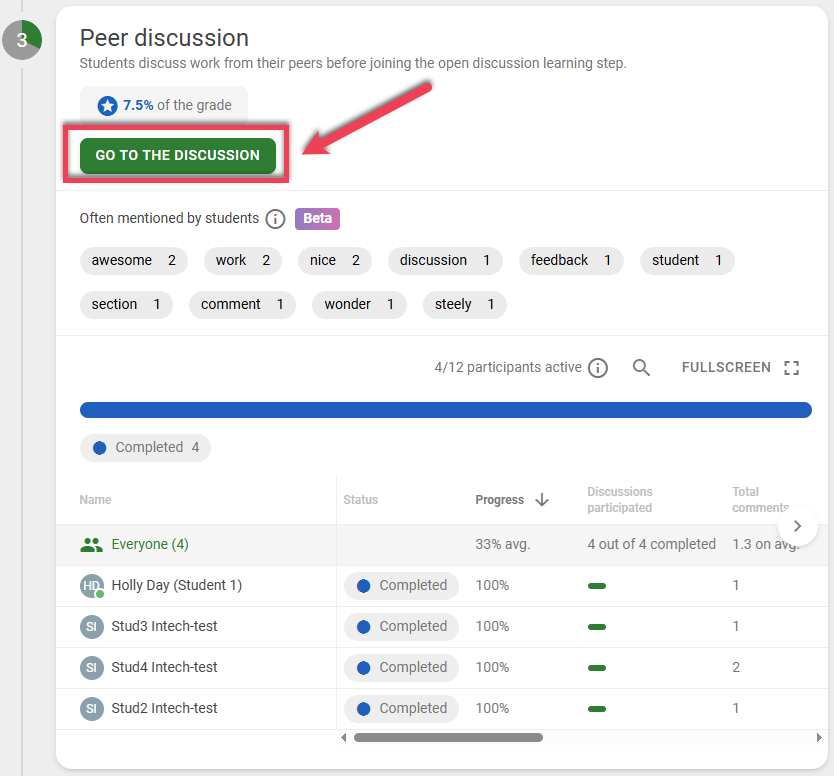
To view and respond to threads in the discussion, select the GO TO THE DISCUSSION button on the Peer Discussion step.
Optional Learning Steps
In addition to the default modules within each discussion, there are additional steps that can be added to enhance learning. These steps can be added my selecting the + symbol at the bottom of the module or going into edit mode, scrolling to the bottom. then selecting Add Additional Learning step.
Reflect on Activity - Students create a written reflection. Instructors can set scheduling deadlines and word counts.
Select most valuable contributions - Let students select certain peers’ contributions that they found most valuable to increase autonomy and avoid free-riding.
To add a learning step, select the ADD button. The learning step will be added and configured above the grading step.

Additional Resources
To further enhance your understanding on the functionalities of the Peer Review tool, please visit the FeedbackFruits website and their Discussion on Topic help pages.