
Zoom: Join a Meeting that Requires UA Authentication
Some Zoom meetings on campus may require you to authenticate with your UA NetID credentials to join the meeting. It is best practice to always be sure you are signed in to Zoom with your university account so that any meeting you are attending recognizes you properly.
Instructional Process
Step 1
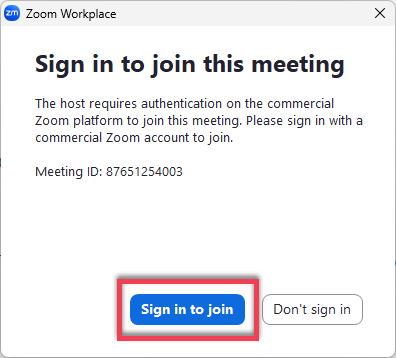
When joining a Zoom meeting that requires authentication, you will be prompted with a message informing you that the meeting host requires authentication to join this meeting. When you see this prompt, select Sign in to join.
Step 2
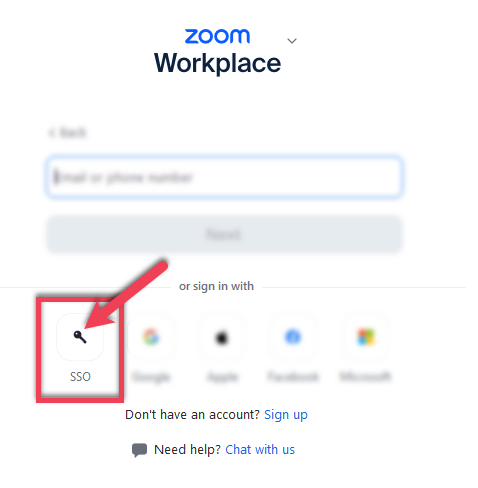
The next prompt you will see is the Zoom login screen. Select the SSO button.
Note
Do not enter your university email address or password in the empty email or password fields as it will not authenticate correctly and will not let you enter the meeting. Additionally, the Google, Apple, Facebook, and Microsoft options will not work.
You must select the SSO option to login via your UA NetID to properly authenticate.
Step 3
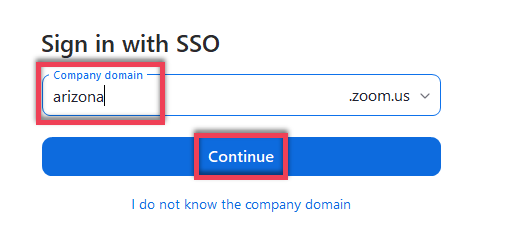
At the next prompt you will be asked for your company domain. Type arizona in the company domain box. Select Continue.
Step 4
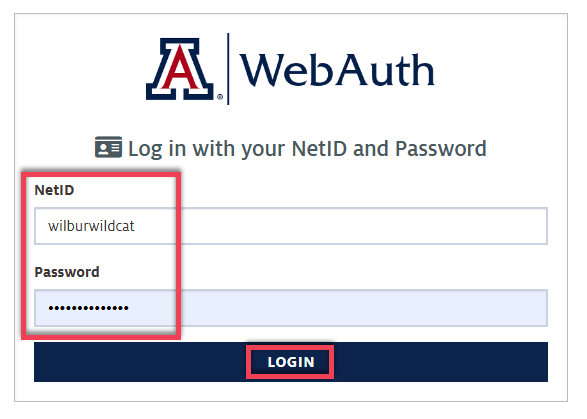
The UA WebAuth screen will appear. Type in your UA NetID and password in the fields provided and select the Login button. You will then likely need to go through the NetID+ authentication.
Step 5
You should now be successfully signed into the Zoom meeting with your university licensed Zoom account.